
Vanish SEO Guide
How to hide elements on websites without custom CSS
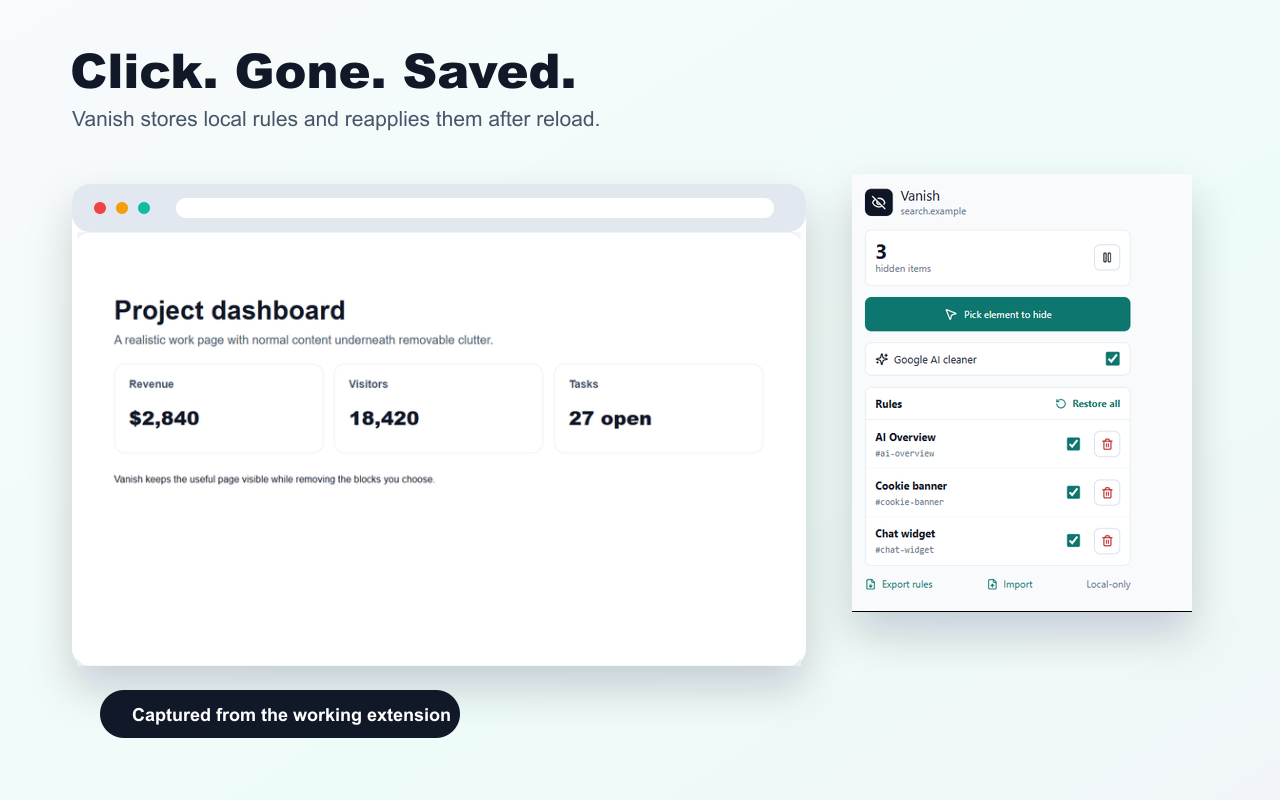
To hide an element on a website without writing custom CSS, use a click-to-hide browser extension. Vanish lets you select visible webpage clutter, saves a local rule for that site, and reapplies it when you return.
Last updated: April 26, 2026
Direct answer
Vanish hides webpage elements by creating local per-site rules from your click. It is useful when you want to remove page clutter without maintaining custom CSS snippets, browser user styles or manual filters.
Common elements you can hide
Workflow
- Open the page that has an annoying element.
- Click the Vanish extension button.
- Start pick mode.
- Click the element you want to hide.
- Reload or revisit the site to confirm the rule persists.
- Use the rule manager if you need to pause, disable or delete a rule.
Vanish vs manual CSS
| Need | Vanish | Manual CSS |
|---|---|---|
| One-click selection | Yes | No |
| Rule manager | Built in | Depends on your setup |
| Privacy | Local-only | Local if self-managed |
Use Vanish for local web cleanup
Vanish is built for everyday cleanup: hide one element, keep the rule local, and undo it if the page changes.
Open Vanish landing pageFAQ
How can I hide a specific element on a website?
Use Vanish pick mode, click the visible element you want to hide, and Vanish saves a local rule for that site.
Do I need to write CSS selectors myself?
No. Vanish creates the selector from your click. You can manage or delete the saved rule later from the popup.
Can I restore hidden elements?
Yes. Vanish includes restore all, per-rule disable/delete and per-site pause controls.